Before you start
- Squarespace 7.1 — the plugin does not run on 7.0, which uses a different editor.
- Core plan or above. Code Injection is a premium Squarespace feature and is switched off on Basic. Trial sites do work, including Circle trials — the panel may show an upgrade badge, but the install functions.
- An English-language Squarespace admin. The plugin finds where to add the menu entries by reading the labels “Heading 4” and “Paragraph 3”. On an admin in another language it simply doesn’t appear — nothing breaks. Other languages are on the list.
- Edit in desktop Chrome. That is where the plugin is built and tested. What it publishes is ordinary CSS and real tags, which work in every browser.
Install in four steps
- Open your licence page. Your receipt links to it — it looks like
textlevels.app/account?key=…Bookmark it; it is also where you manage sites later. - Add your site. Click Add a site, give it a name, and your four-line install snippet appears, already filled in for that site. A single-site licence allows one site; Studio, as many as you build.
- Paste it into Squarespace. In your site’s admin, go to
Settings → Advanced → Code Injection, paste the snippet into the
Header field, and save. The snippet has this shape:
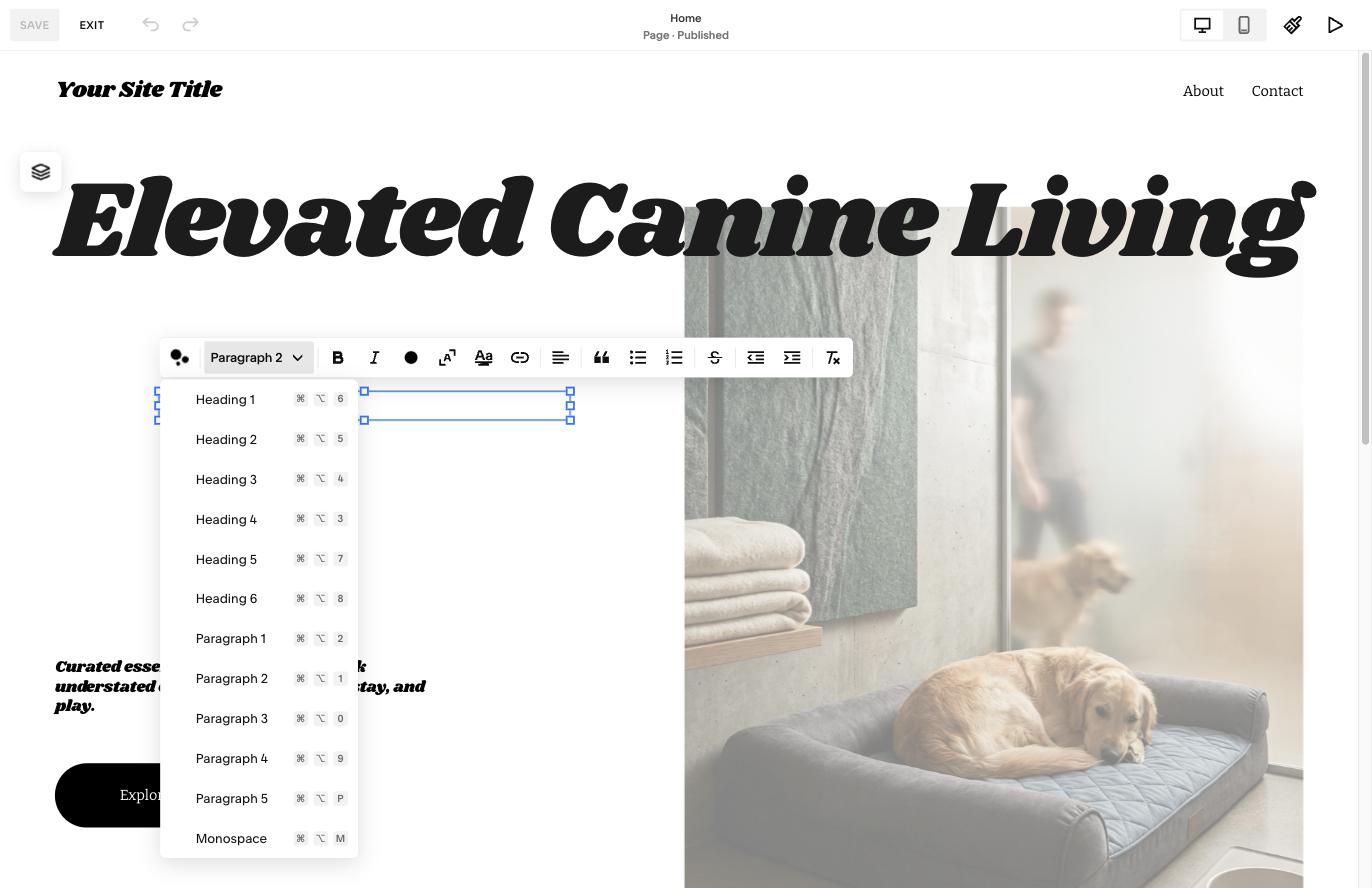
<!-- TextLevels by WeGo Plugins --> <link rel="preconnect" href="…the service…"> <script>window.WEGO_TEXTLEVELS={…your site’s details…};</script> <script src="…the plugin, addressed to your site…"></script> - Reload the editor. Open any page, click into a text block, and open the text style dropdown: Heading 5 and Heading 6 now sit after Heading 4, and Paragraph 4 and 5 after Paragraph 3, ticks and all.
Styling the new levels
Go to Design → Site Styles → Fonts. Heading 5 and Heading 6 have size sliders on the Headings panel, under Heading 4; Paragraph 4 and 5 have theirs on the Paragraphs panel, under Paragraph 3. They look and behave like the sliders already there.
- Size is the per-level setting. Squarespace sets font, weight, line height, letter spacing and case once for all heading levels — that is true of Heading 1–4 as well. The new levels inherit all of it automatically, so they always match the rest of your type.
- Sensible starting sizes. The plugin reads your template’s own Heading 4 and continues the ladder one clean step down, so Heading 5 never lands on top of Heading 4 — whatever template you use.
- Built for phones. Squarespace scales text with a viewport formula rather than breakpoints. TextLevels matches that formula, so Heading 5 stays between Heading 4 and body text at every screen width.
- Changes appear instantly in the editor and its preview. On the live site, allow up to a minute for visitors who already had the page open.
- Your Custom CSS is never touched. The plugin doesn’t read or write it; your sizes are stored on our settings service.
Everyday use
- Where they live: the text style dropdown — the same menu as Heading 1–4 and Paragraph 1–3. The tick shows the applied level and the toolbar label reads it back, exactly like the native ones.
- Keyboard shortcuts: one per level, shown in the menu
(
⌘⌥7Heading 5,⌘⌥8Heading 6,⌘⌥9Paragraph 4,⌘⌥PParagraph 5). Squarespace’s own shortcuts are untouched. - Blog posts: tested end to end — apply Heading 5 in a post, publish,
and the live post carries a real
<h5>. Both the newer and classic section layouts are covered. - Safe for client edits: the levels use the same underlying mechanism as Squarespace’s own paragraph styles. Choosing Heading 5 simply replaces the applied level, the way choosing Heading 2 does. Multi-paragraph selections, lists and blockquotes keep their structure.
- SEO & accessibility: published pages carry real
<h5>and<h6>tags, so search engines and screen readers get the same outline your readers see. See it rendered live.
Troubleshooting
- Nothing appears in the menu after installing. Check your plan first. On Basic (and some trials) the Code Injection field accepts and saves your snippet even though the feature isn’t active — a saved value is not proof of a working install. Code Injection needs Core or above.
- The menu entries don’t appear and your admin isn’t in English. That’s the current language limitation described above — the plugin quietly does nothing rather than guessing. Email us and we’ll tell you where support stands.
- Headings flash at the wrong size, then correct themselves. The snippet is in the Footer. Move all four lines to the Header field and save.
- You moved a slider but the live site hasn’t changed. The editor shows it immediately; the live site caches its sizes for up to a minute. Reload after that and the new size is there.
- Something looks wrong while editing in Safari or Firefox. Editing is built and tested for desktop Chrome. Try Chrome for the edit session — and tell us what you saw, because we fix these.
Still stuck? Email [email protected]. The plugin has a one-line diagnostic we may ask you to run in your browser console — it tells us straight away whether the site is set up correctly, whether the sizes are loading, and whether anything has thrown an error. Most reports turn out to be a setting rather than a fault.
Uninstalling & refunds
Your content is never at risk. Every level is stored as an ordinary paragraph with a class on it, so removing the four lines from Code Injection leaves all of your text exactly where it was. What changes is the appearance: the four levels revert to ordinary paragraphs at their default size.
Purchases come with a 30-day money-back guarantee — the terms & refund policy has the detail, in plain language.
Ready to install?
One-time price, every future update included.